
Images from a description
Write the subject, setting, light and style, and OpenAI GPT Image 2 turns it into a picture. Change a word or two and run it again until it matches what you had in mind.
Use OpenAI GPT Image 2 in ChatUp to turn a description into an image, or to edit a photo you already have. Pick it from the model menu in the AI Image Generator and AI Image Editor.
Example prompt
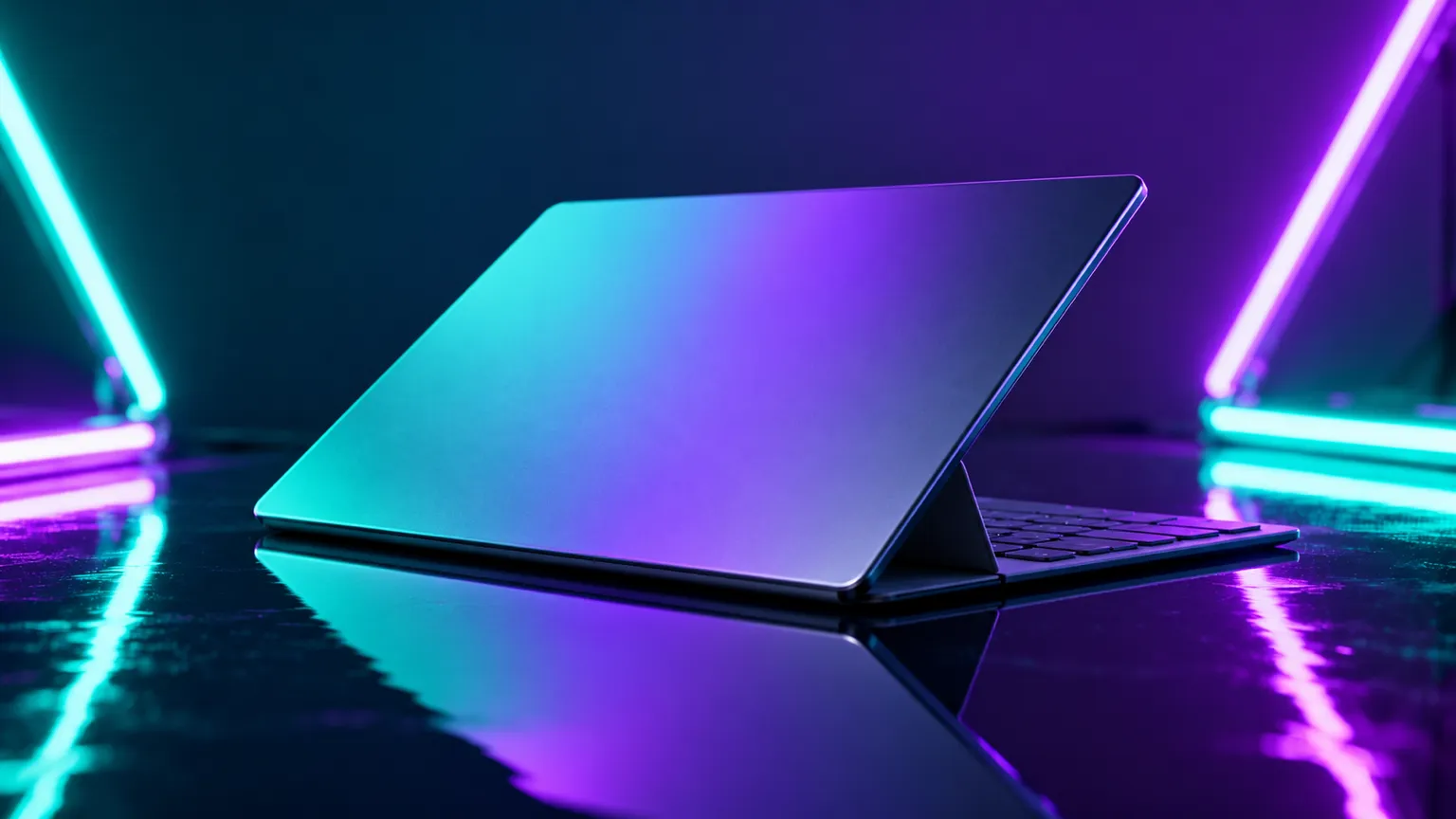
Write the subject, setting, light and style, and OpenAI GPT Image 2 turns it into a picture. Change a word or two and run it again until it matches what you had in mind.
Add up to 3 reference photos of your own so a face, a product or a look carries into the new image instead of starting from nothing.
In the AI Image Editor, add a photo and say what should change: a new background, an object taken out, a different style. OpenAI GPT Image 2 keeps the rest of the picture as it was.
Pick 1:1, 3:2 and 2:3 (square among them), so the image fits a post, a story, a banner or a print before you make it.
Three steps from an idea to a finished image.
Open the AI Image Generator and pick OpenAI GPT Image 2 from the model menu, then choose a shape.
Describe the subject, setting, light and style. Add your own photos when you want a face, product or look to carry over.
Create the image, then adjust your words and try again, or save the one you like.
Put a product in a clean studio scene or a styled setting without booking a shoot.
Draft visuals for a post, a story or a banner in the shape the channel needs.
Make brand portraits and tidy profile pictures with the light and backdrop you describe.
Test looks, characters and scenes quickly before you commit to one direction.
Describe a picture, or add up to 3 reference photos to guide it.
Open AI Image GeneratorAdd a photo and describe the change you want.
Open AI Image Editor| Model | Shapes | Reference photos | Photo edits |
|---|---|---|---|
| OpenAI GPT Image 2 | 3 | Up to 3 | Yes |
| Gemini Nano Banana 2.1 | 8 | Up to 3 | Yes |
| Gemini Nano Banana 2 Lite | 8 | Up to 3 | Yes |
| Gemini Nano Banana Pro | 8 | Up to 3 | Yes |
| Grok Imagine | 8 | Up to 3 | Yes |
OpenAI GPT Image 2 is one of the image models in ChatUp. You can use it in the AI Image Generator and AI Image Editor.
Yes. Add up to 3 reference photos to guide a new image, or add the photo you want to edit in the AI Image Editor.
In ChatUp it offers 1:1, 3:2 and 2:3.
Yes. Making images is part of a paid ChatUp plan. Plans show their limits before you choose one. See plans.
Under ChatUp’s Terms you keep the rights to what you create, including commercial use, as long as you follow the Terms and the law. Read the Terms.
Write a prompt above, or open the AI Image Generator and pick OpenAI GPT Image 2 from the model menu.
Create now